
Backup and restore
DTM keeps all of its persistent state (zones, records, users, audit log, TSIG
keys, forwarders, blocklist, and more) in a single database file. Two admin
endpoints let you snapshot and restore it. The examples send an admin bearer
token as $DTM_TOKEN; the API overview
shows how to capture one.
Scheduled backups (built-in, recommended)
Section titled “Scheduled backups (built-in, recommended)”DTM can schedule its own snapshots: no cron, no token file, and, crucially,
an alertable failure signal (a quietly dead cron job is invisible until
the day you need a restore). Configure it on each node from the Scheduled
Backups card on the UI’s Settings page, with PUT /api/v1/config/backup
(admin role), or with the dtm_backup_config Terraform resource. Settings
are per node and take effect at that node’s next dtm-server restart (the
scheduler reads them when it starts), so restart one node at a time after a
change. A saved setting overrides the backup: block in the server
configuration, which is only the boot default:
backup: schedule_enabled: true interval_minutes: 360 # 0 = default 1440 (daily); compliance setups often use 15 retention_count: 7 # local snapshots kept, oldest pruned first dir: /var/lib/dtm/backups # default: a backups directory beside the data store # Optional off-node copy, uploaded with the VM's managed identity: blob_container_url: https://<account>.blob.core.windows.net/dtm-backupsHow it behaves:
- Same protection as the API path: scheduled snapshots carry the same signed (HMAC-authenticated) envelope, keyed to the cluster.
- Local-first: a snapshot is durably on local disk before any upload is attempted, so a broken upload degrades to local-only plus a failure metric, never to no backup at all.
- Off-node copy via managed identity only: grant the node’s identity
Storage Blob Data Contributor on the container. No SAS tokens or
account keys; a container URL that is not
https, has no host, or carries a query string is rejected (with a400on the API, or at startup from the server configuration). A role granted after boot heals without a restart. - Every node schedules independently (a snapshot is node-local state). Point all nodes at one container: blob names are prefixed with the node ID, so they never collide.
- Retention:
retention_countprunes files matching the scheduler’s naming pattern (dtm-backup-*.dtmb) indir, oldest first. It keeps no record of which of them it wrote, so a snapshot you download and save into the same directory under its default name is a prune candidate too: keep copies you care about outsidedir, or rename them so they no longer match the pattern. Remote retention is deliberately DTM’s job not to do: put an Azure Storage lifecycle-management rule on the container.
Alert on it (the reason the built-in scheduler exists):
# Backups have stopped: no success for more than 2 intervals. The gauge# starts at 0, so "never succeeded since boot" fires too.time() - dtm_backup_last_success_timestamp_seconds > 2 * 6 * 3600
# Off-node copy broken while local snapshots still land:rate(dtm_backup_scheduled_failures_total{stage="upload"}[30m]) > 0
The full key list, defaults, and DTM_BACKUP_* environment overrides are in
the configuration reference.
Take a backup on demand (external trigger)
Section titled “Take a backup on demand (external trigger)”GET /api/v1/backup streams a consistent point-in-time snapshot of the
database; it is the same snapshot the scheduler takes, and it remains the
right tool for pre-change snapshots and for teams that prefer their own
trigger (cron, a systemd timer, an Azure Function). Requires an admin token
and the CSRF header.
curl -sk https://dtm.internal:8443/api/v1/backup \ -H "Authorization: Bearer $DTM_TOKEN" \ -H "X-DTM-CSRF: 1" \ -o "dtm-$(date +%Y%m%d-%H%M%S).dtmb"Snapshots use the .dtmb extension (the name DTM’s own UI download and
scheduler use); restore accepts older files whatever they are called.
Recommended practice, whichever trigger you use:
- Cadence: hourly for a single node; every few hours for a multi-node cluster (peers cover the gap, so the backup is really for total loss); more often where compliance requires it.
- Store off the node: ship snapshots to an Azure Storage account (with blob versioning and soft-delete enabled) rather than leaving them on the node’s disk. From v1.0.4 the deployment templates delete a node’s data disk together with its VM, so on a single-node deployment deleting or rebuilding the VM deletes the zone data with it: an off-node backup is then the only copy.
- Protect them: a snapshot contains sensitive data, so store it encrypted at rest with restricted, logged access, or set a passphrase so the file itself is encrypted.
- Save a checksum alongside each snapshot (external-trigger flows; the
endpoint also returns the digest in an
X-DTM-Backup-SHA256response trailer).
What a snapshot contains
Section titled “What a snapshot contains”Included: zones, records, SOA and RRsets, users and password hashes, service accounts, the audit log, TSIG keys, health checks, the blocklist, forwarders, and discovery scopes. TSIG shared secrets and the OAuth2 client secrets of health checks are stored encrypted under the cluster encryption key. A health check’s bearer headers and mTLS private key are stored as entered, readable by anyone who holds the file.
Not included (re-provisioned per environment): TLS certificates and keys on disk, the Key Vault-held first-boot secrets (the cluster encryption key and initial admin password), OS and image state, and network configuration. The node’s JWT signing key is stored in the database and travels with the snapshot, protected by encryption at rest keyed off the cluster encryption key. A node restored without its cluster credentials boots but cannot participate in the cluster until those are re-issued.
Because the cluster encryption key is not in the snapshot, a snapshot opens only with the key of the cluster that took it. Keep a copy of that key away from your backups.
Because a snapshot carries those credentials, any copy you have downloaded outlives the cluster it came from. Deleting the DTM resources does nothing to a file sitting on a workstation, a file share, or a storage account. Decommissioning a cluster covers tracking those copies down when you retire a deployment.
Encrypt backups with a passphrase (optional)
Section titled “Encrypt backups with a passphrase (optional)”By default a snapshot is signed (HMAC-authenticated, keyed to the cluster) but not encrypted, which is why the guidance above says to treat the file as sensitive wherever it is stored. Setting a passphrase encrypts the snapshot payload itself with AES-256-GCM (the key is derived from the passphrase with Argon2id), so the file is unreadable without the passphrase no matter where it ends up.
-
On-demand backups: send the passphrase in the
X-DTM-Backup-Passphraserequest header on the download (never in the URL); the backup card on the Settings page has a matching passphrase field:Terminal window curl -sk https://dtm.internal:8443/api/v1/backup \-H "Authorization: Bearer $DTM_TOKEN" \-H "X-DTM-CSRF: 1" \-H "X-DTM-Backup-Passphrase: <passphrase>" \-o "dtm-$(date +%Y%m%d-%H%M%S).dtmb" -
Scheduled backups: set the passphrase write-only through
PUT /api/v1/config/backupor the Scheduled Backups card (a read returns onlypassphrase_set; leaving the field out keeps the stored one), or setbackup.passphrasein the server configuration or theDTM_BACKUP_PASSPHRASEenvironment variable (preferred over the YAML, so the value stays out of the file). A saved setting that has no passphrase still uses the one from the configuration or environment. From the node’s next restart, every scheduled snapshot is encrypted before it reaches local disk or blob storage. -
Restoring: supply the same passphrase when staging the snapshot (step 1 below). An encrypted snapshot staged without its passphrase, or with the wrong one, is rejected with a clear error before the live database is touched.
Restore a single node
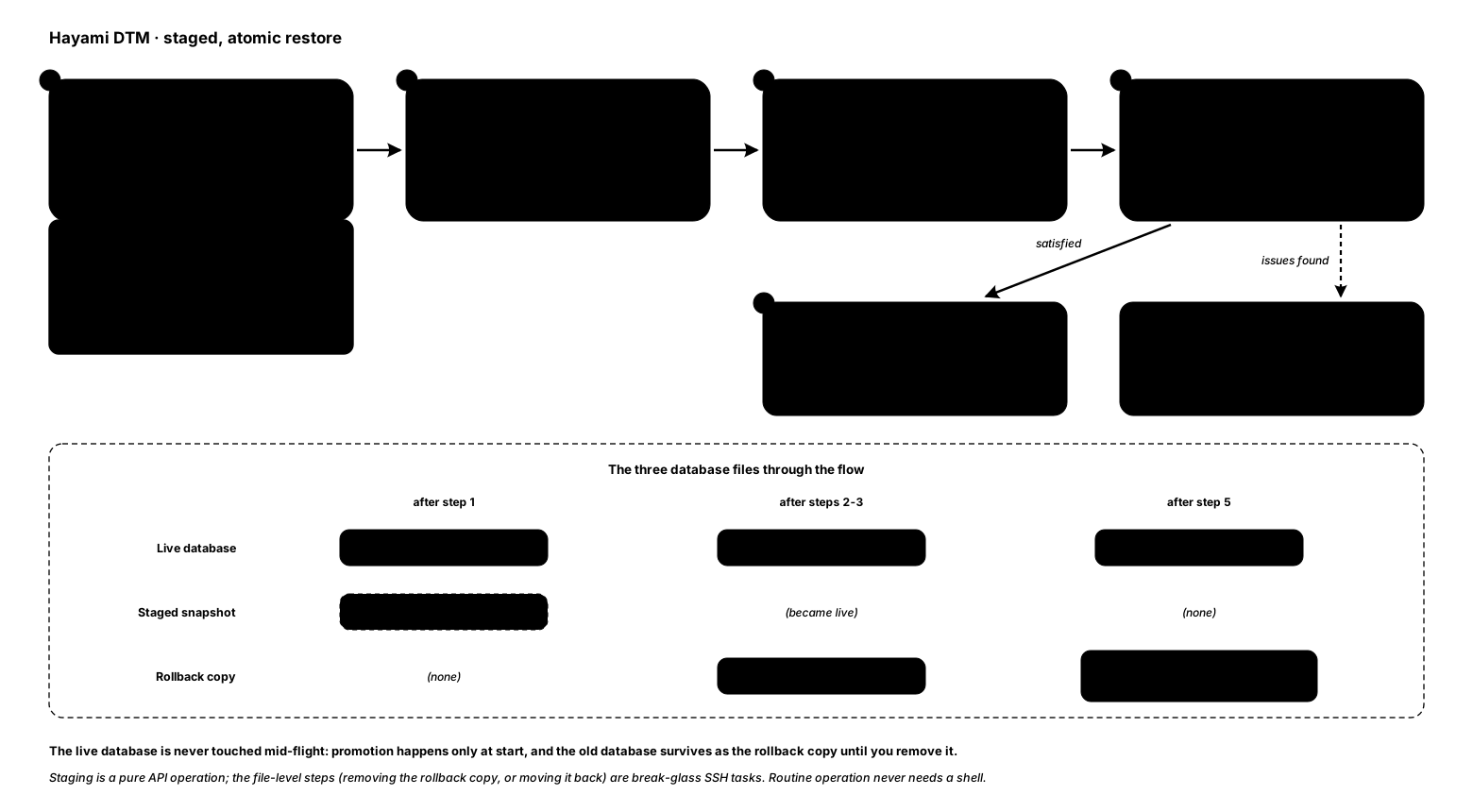
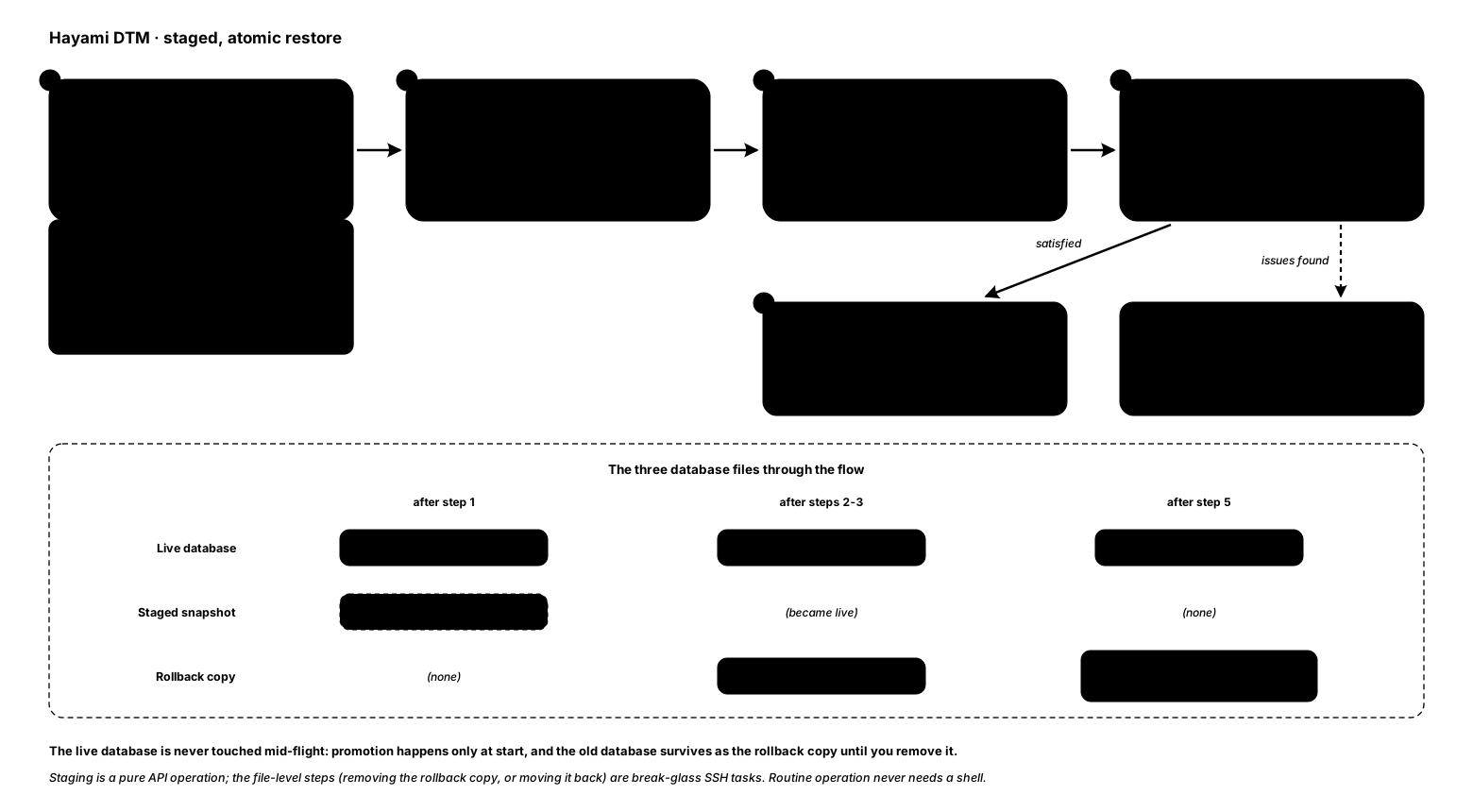
Section titled “Restore a single node”Restore is staged and applied atomically on the next start, so the live database is never touched mid-flight.
-
Upload the snapshot (the service stays running; this only stages the file, the live database is not changed yet). The Settings page’s restore form drives this same staged flow, including a passphrase field for encrypted snapshots; over the API:
Terminal window curl -sk -X POST https://dtm.internal:8443/api/v1/restore \-H "Authorization: Bearer $DTM_TOKEN" \-H "X-DTM-CSRF: 1" \--data-binary @dtm-20260101-000000.dtmbIf the snapshot is passphrase-encrypted, add
-H "X-DTM-Backup-Passphrase: <passphrase>": a wrong or missing passphrase rejects the upload and nothing is staged. -
Restart the node: restart the VM from the Azure portal or CLI, or restart just the service (
systemctl restart dtm-server) over break-glass SSH. On boot DTM sets the current database aside (as a rollback copy) and promotes the snapshot. -
Verify:
GET /api/v1/zonesreturns the expected data. -
Once satisfied, remove the rollback copy (a break-glass SSH task). To roll back instead, stop the service, move the rollback copy back, and start.
Restore offline (break-glass)
Section titled “Restore offline (break-glass)”The staged API restore needs a running, reachable server. When the node is dead or every admin is locked out, restore over the deployment’s break-glass SSH instead, with the service stopped:
sudo systemctl stop dtm-serversudo systemd-run --quiet --pipe --wait --collect \ -p User=dtm -p Group=dtm -p UMask=0027 \ -p EnvironmentFile=/etc/dtm/dtm-server.env \ -p ProtectSystem=strict -p ReadWritePaths=/var/lib/dtm \ /usr/local/bin/dtm-server restore --local \ --config /etc/dtm/dtm-server.yaml \ /var/backups/dtm/dtm-backup-20260501T100000Z.dtmbsudo systemctl start dtm-serverRun the restore through systemd, as shown. On a node deployed from the
Marketplace, Bicep or Terraform templates, the cluster key that verifies the
snapshot is not in dtm-server.yaml: it is DTM_REPLICATION_ENCRYPT_KEY in the
root-only /etc/dtm/dtm-server.env, which systemd loads for the service.
-p EnvironmentFile= has systemd read that file with the same parser, so the
restore verifies with exactly the service’s key, and nothing in the file is
executed. -p User=dtm -p Group=dtm -p UMask=0027 keep the restored database
owned by the service account, and ProtectSystem=strict with
ReadWritePaths=/var/lib/dtm lets the restore write the store and nothing
else. Running the restore with sudo -u dtm instead leaves it without the key,
because sudo drops the environment and dtm cannot read the file.
Because the service is stopped, the subcommand stages and applies in one shot:
it validates the snapshot envelope against the cluster key, swaps the payload
in atomically, keeps the previous database as dtm.db.pre-restore for
rollback, and prints the restored zone and record counts. For a
passphrase-encrypted snapshot,
add --passphrase-file <path>: reading the passphrase from a file keeps it
out of the process list. The restore runs as dtm, so that file must be
readable by dtm.
Do not mix the two paths: a stopped server cannot accept the API upload, and a running one should be restored through the staged API flow above, never the offline CLI.
Changed in v1.0.6. The subcommand refuses, and changes nothing, in two cases:
- dtm-server still holds the database. It stops with
<db> is locked by another process (is dtm-server still running?); stop it first. It checks before it reads the key or the snapshot, and again just before the swap. That is a check, not a lock held across the swap: do not start the service until the command has finished. - A restore or a compaction is already staged for the next start (the
pair
dtm.db.restore-pendinganddtm.db.restore-trigger, for example a snapshot uploaded through the API). It never replaces it, and the message names what it found. Start dtm-server to apply the staged pair, or remove both files to abandon it, then run the restore again. A lone file of the pair is the remains of an abandoned restore: remove it.
Restore a whole cluster
Section titled “Restore a whole cluster”-
Stop dtm-server on every node (
sudo systemctl stop dtm-server, a break-glass SSH task); the service drains gracefully. Leave the VMs running: the next steps need a shell on them. -
Restore on one node: the one with no
replication.seedsin/etc/dtm/dtm-server.yaml(if every node has seeds, pick any one), from a snapshot that node took. Use the offline restore: with the cluster stopped, the API path is not available. Restoring on another node goes wrong: a wiped node with no seeds goes ready on an empty database, and the restored node then merges with it. If the only good snapshot is another node’s, stop and contact support. If the cluster was deployed again from scratch, it has a new cluster encryption key: restore with the old one, as in Restore a snapshot taken under another key. -
On every other node, remove the database file (
/var/lib/dtm/dtm.db) so it re-syncs cleanly (a break-glass SSH task). -
Start the restored node first. With no seeds it goes ready on its own; with seeds it stays not-ready until the first wiped node joins, which is expected.
If the snapshot is more than 28 days old, the node starts not-ready and answers
SERVFAIL, as a node back from a month offline would. Here it is the cluster’s only copy, so accept it before you start it:sudo touch /var/lib/dtm/accept-stale-replica. The marker is accepted only while no other node answers, which is the case at this step. -
Start one wiped node. It joins, syncs a full copy of state from the restored node, and then becomes ready. Wait for
/readyzto return200on it and on the restored node. -
Readmit that node from the restored node, then restart dtm-server on it within ten minutes. A wiped node starts with a new signing key under its old node id, and the restored snapshot holds the old one, so without the readmit the node serves DNS and reports ready while its peers reject every API token it issues:
Terminal window curl -sk -X DELETE https://<restored-node>:8443/api/v1/nodes/<id> \-H "Authorization: Bearer $DTM_TOKEN" \-H "X-DTM-CSRF: 1"curl -sk -X POST https://<restored-node>:8443/api/v1/nodes/<id>/readmit \-H "Authorization: Bearer $DTM_TOKEN" \-H "X-DTM-CSRF: 1"Single node, corrupt database covers the ten-minute window and how to confirm it worked. Repeat steps 5 and 6 for each wiped node, one at a time.
-
Verify:
GET /api/v1/nodeslists every node you deployed, eachalive(count the entries: a failed node drops out of the list rather than changing status), andGET /api/v1/statson every node reports the zone and record counts the restore printed. -
Fix up service accounts. They are per node and live in the database: a wiped node has none, so every integration that held a token for it gets
401, and the restored node has the snapshot’s set (an account created after the snapshot is gone, one revoked after it is back). On each node, list them (GET /api/v1/service-accounts), delete any that should not exist, and create fresh tokens where an integration needs one.
Restore a snapshot taken under another key
Section titled “Restore a snapshot taken under another key”Added in v1.0.6.
A snapshot is sealed to the cluster encryption key of the cluster that took
it (the dtm-gossip-key secret in that deployment’s Key Vault), and the
secrets inside it can be opened only with that key. Every deployment
template generates a new key when a cluster is deployed from scratch, so
after losing a whole deployment, the replacement cannot open the old
snapshots: the plain offline restore refuses them, and so does
--accept-cross-cluster (see the caution under
Restore offline).
--source-key-file restores such a snapshot when you have the old key.
The restore verifies the snapshot with that key, then, in a private working
copy, re-encrypts every stored secret for this cluster. It checks the result
opens under this node’s key, then stages it, and only then applies it like any
offline restore. The old key opens nothing the node seals afterwards.
-
Get the old key, from your escrow copy or from the old deployment’s Key Vault secret
dtm-gossip-key. A deleted vault can be recovered within its soft-delete retention period (az keyvault recover). -
Write it to a file the restore accepts. The restore refuses anything that is not a regular file (a symlink, for example), a file its group or others can read, and a file owned by any user other than the one the restore runs as (
dtmin the command below). A copy you made as yourself is therefore refused. The key is never accepted on the command line, where the process list would show it:Terminal window sudo install -d -o dtm -g dtm -m 0700 /var/tmp/dtm-restoresudo install -o dtm -g dtm -m 0600 /dev/stdin /var/tmp/dtm-restore/source.key <<'EOF'<the old cluster's base64 key>EOF -
Restore exactly as in Restore offline, with
--source-key-fileadded. The node’s own key still comes from its environment file:Terminal window sudo systemctl stop dtm-serversudo systemd-run --quiet --pipe --wait --collect \-p User=dtm -p Group=dtm -p UMask=0027 \-p EnvironmentFile=/etc/dtm/dtm-server.env \-p ProtectSystem=strict -p ReadWritePaths=/var/lib/dtm \/usr/local/bin/dtm-server restore --local \--config /etc/dtm/dtm-server.yaml \--source-key-file /var/tmp/dtm-restore/source.key \/var/backups/dtm/dtm-backup-20260501T100000Z.dtmb--source-key-filecannot be combined with--key,--accept-cross-clusteror--insecure-backup;--passphrase-fileworks with it as usual. It refuses, as any offline restore does, while dtm-server holds the database or a restore or compaction is staged, and also while a working copy from another run (dtm.db.rekey-work) exists (if no restore is running, delete that file: it holds cluster data). A wrong old key fails the envelope check. On any refusal nothing is staged and the live database is unchanged. On success the restore prints how many secrets it re-keyed and the restored zone and record counts. A secret that was already unreadable in the snapshot is carried across unchanged and named; if that secret is the JWT signing key, the restore refuses instead. -
Shred the key file as soon as the restore is done:
sudo shred -u /var/tmp/dtm-restore/source.key. -
Start dtm-server. For a whole cluster, this restore is step 2 of Restore a whole cluster: continue from its step 3.
Keep a copy of the key away from your backups
Section titled “Keep a copy of the key away from your backups”The cluster encryption key is the only thing that opens your snapshots, and it lives only in the deployment’s Key Vault: lose that vault and every snapshot is unusable. Escrow a copy of the key somewhere that does not share the backups’ fate, and not next to the snapshots: anyone holding both holds the cluster’s secrets. Escrow it again whenever the key changes.
Reclaim disk with compaction
Section titled “Reclaim disk with compaction”The database file grows over time; space freed by deletes and log pruning is
reused internally but not returned to the filesystem, so the file can grow
several times larger than the live data. Watch dtm_storage_bbolt_free_pages
(alert when free pages exceed 50% of total, sustained for 6 hours: the
shipped DTMBboltFreelistBloat rule’s hold; a longer hold is fine if you
tune your own rule).
Compact per node, one at a time:
curl -sk -X POST https://dtm.internal:8443/api/v1/admin/compact \ -H "Authorization: Bearer $DTM_TOKEN" \ -H "X-DTM-CSRF: 1"az vm restart -g <resource-group> -n <vm-name> # or: systemctl restart dtm-serverThe compact stages a smaller copy (no downtime during staging); the restart swaps
it in. The file typically shrinks 30-60%. Across a cluster, do this one node at
a time, waiting for /readyz = 200 between nodes. Do not run compaction and
restore at the same time. A quarterly cadence (or alert-driven) suits most
deployments.
Related
Section titled “Related”- Disaster recovery for recovering from node or cluster failure.
- Rolling upgrades for zero-downtime image upgrades.
- Decommissioning a cluster for retiring a deployment, including what deleting the VMs does not remove.